Customizing colors
DAMAP provides a built-in theme customization interface that allows administrators to customize colors at runtime through the Admin Page → Theme Page.
Background Information
The Material Design System is implemented under the hood to generate the entire color palette from just a few input colors.
For example, choosing green: 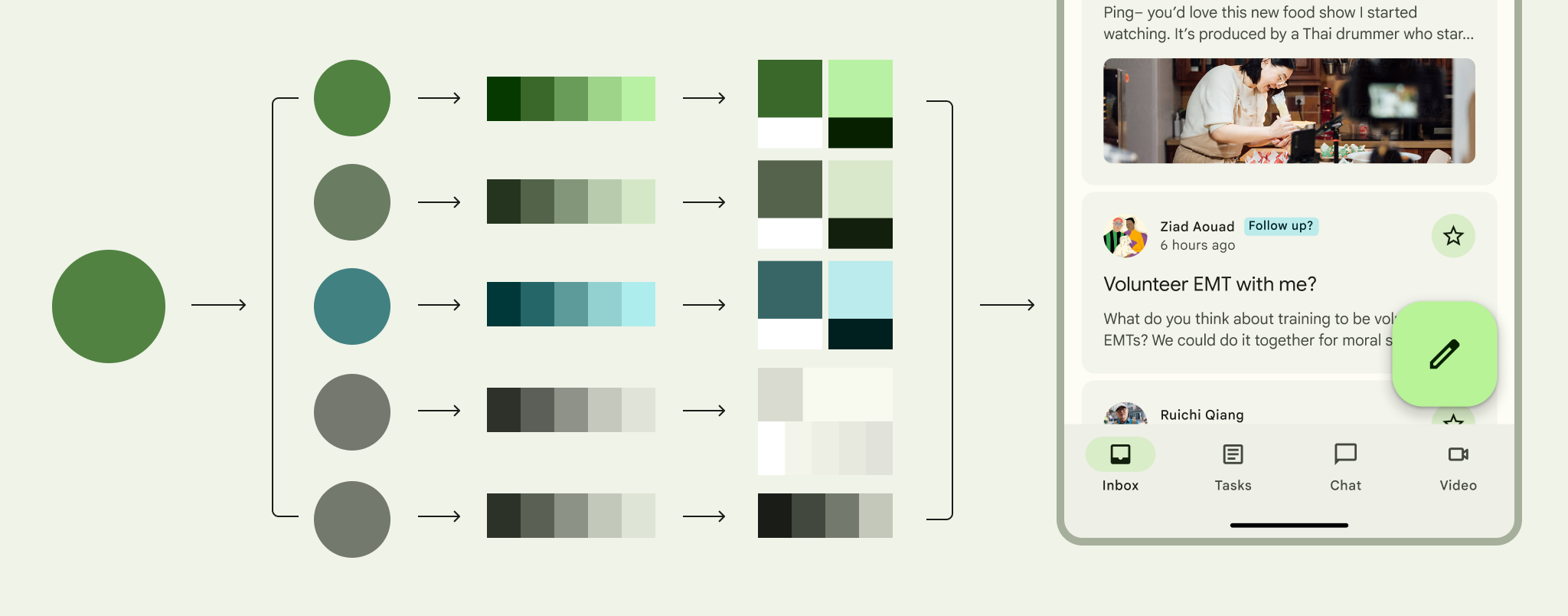
Page Structure
The page is divided into two parts: Color Pickers and Color Previews:
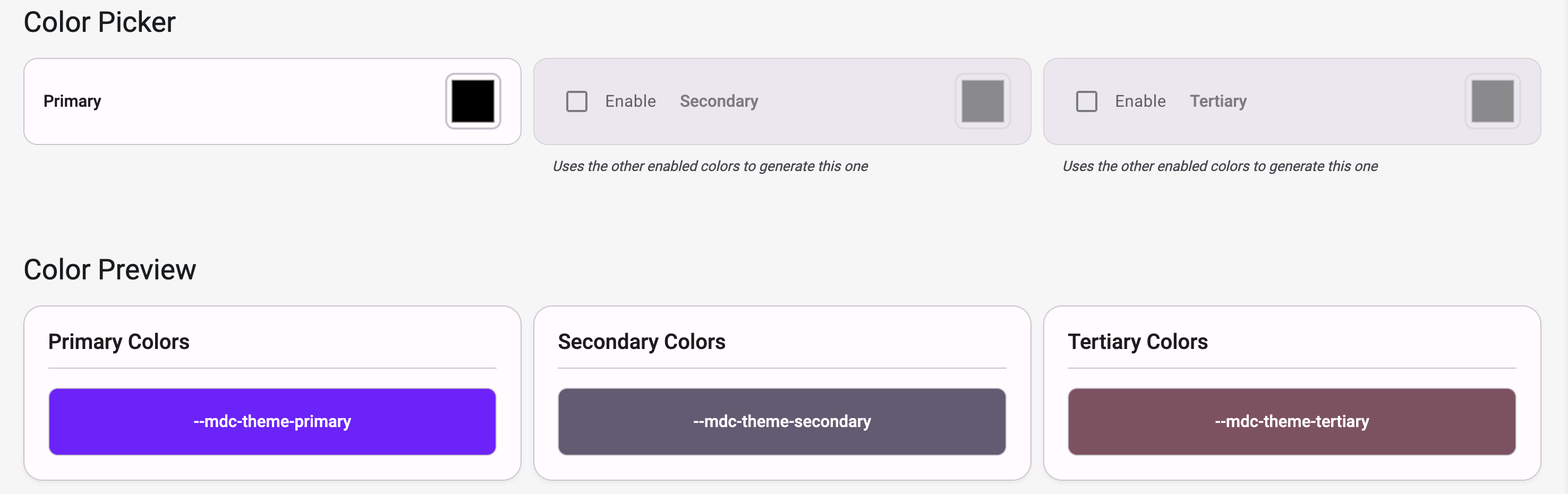
Clicking on a color picker allows you to input your institution's color:
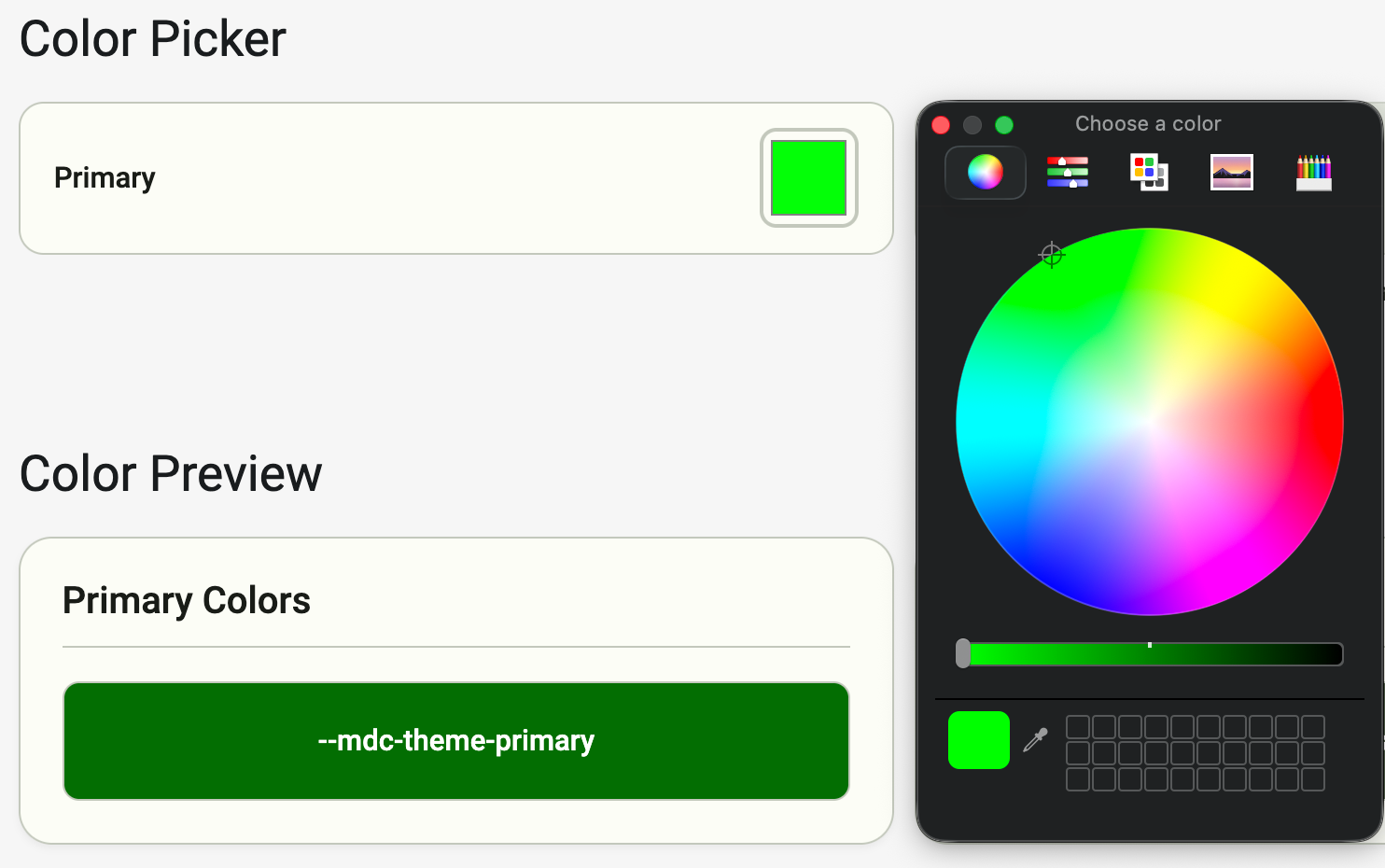
or
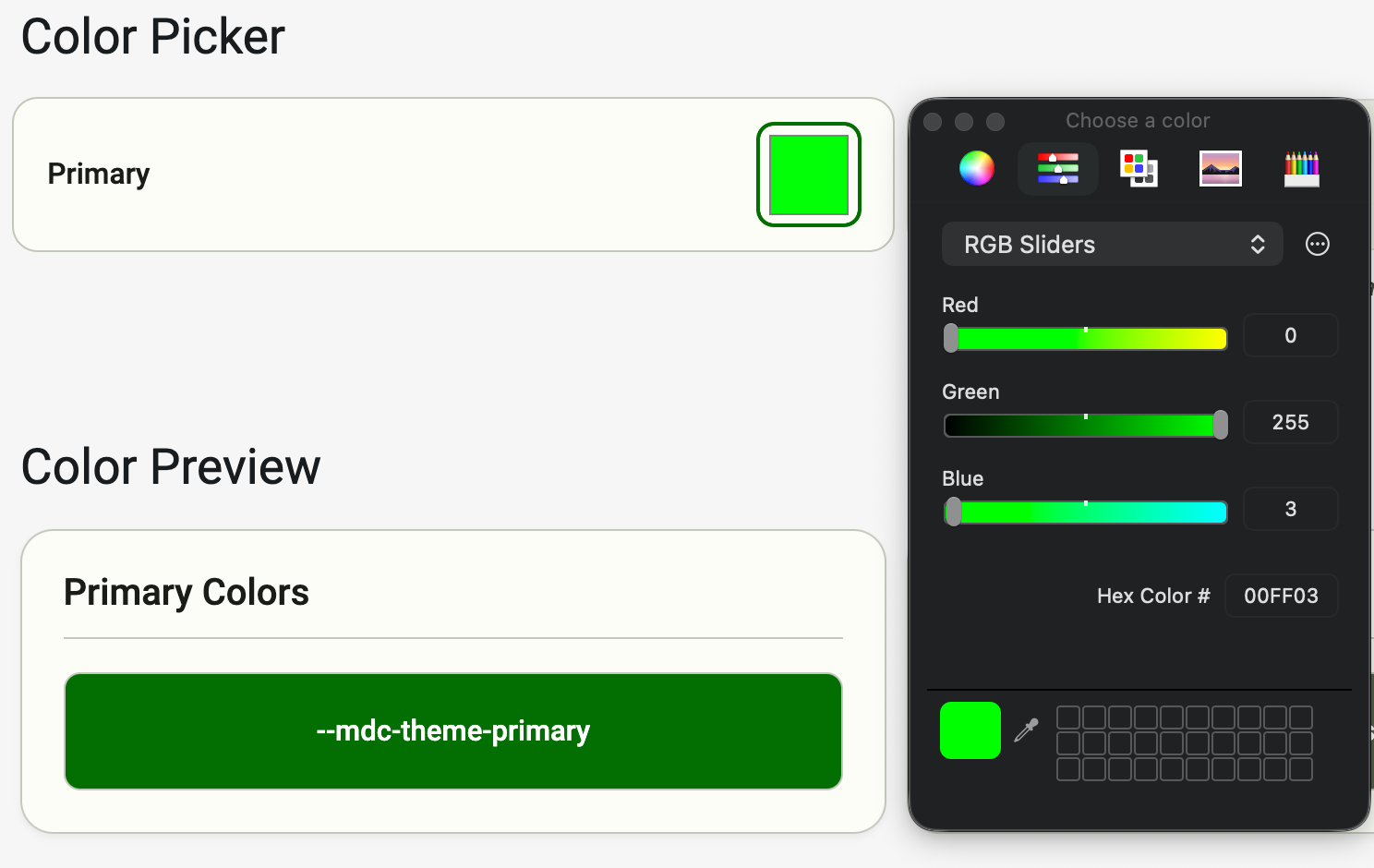
or
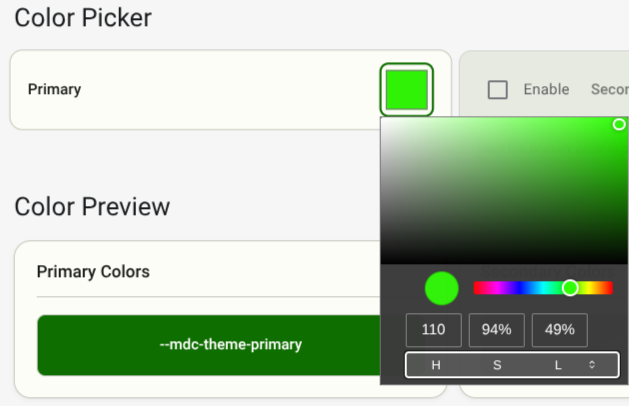
Color picker depends on your browser, yours might look different. Most of them also have a button to toggle the Color Code type (RGB vs HEX vs CYMK)
Example Flow
Let's customize the page for TU Wien. The primary color of TU Wien is #006699, so if you input that into the Primary Color Picker you get this:
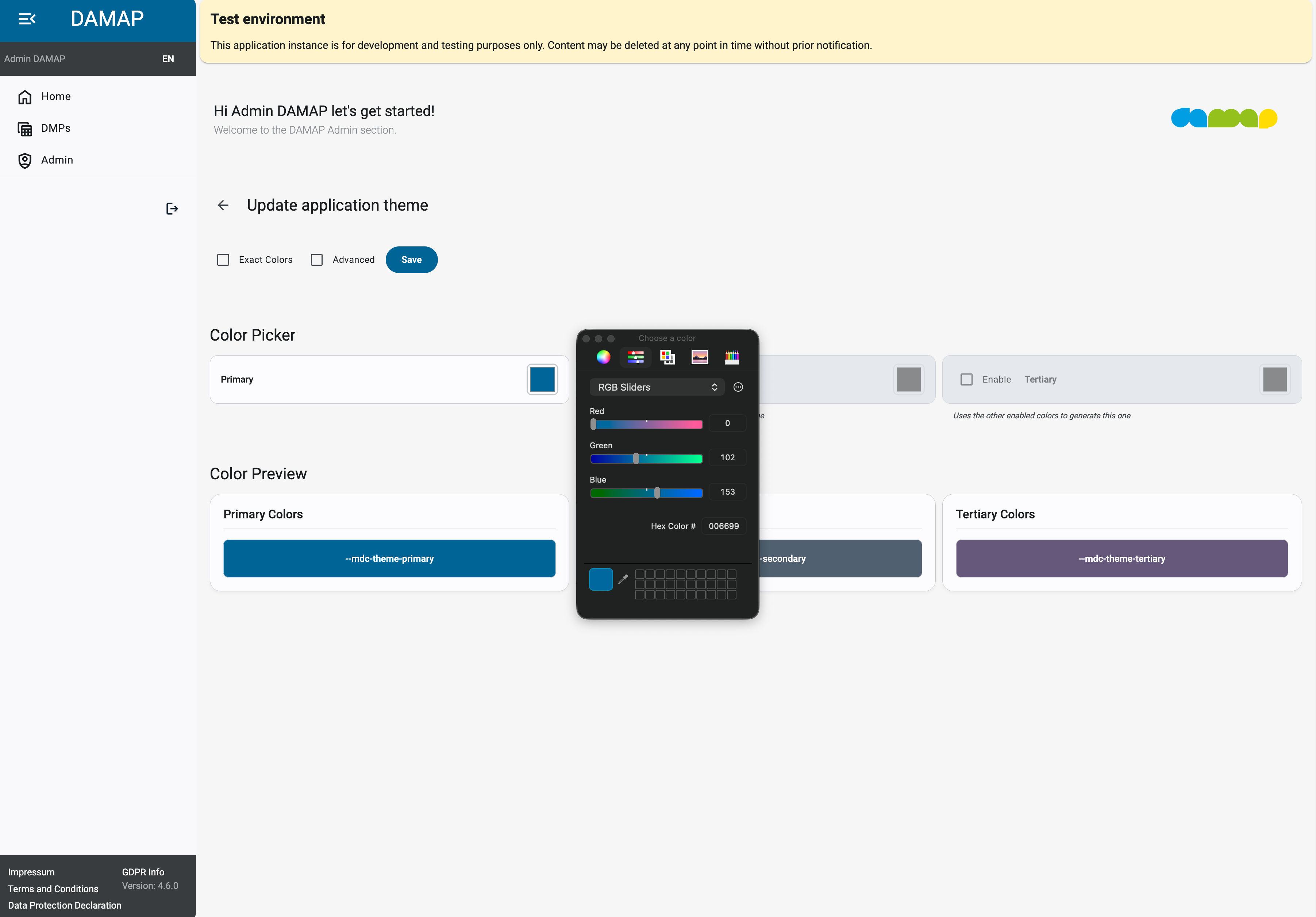
At this point, you might notice that the colors throughout the application do not 100% match the Primary Color you have used as input. This is because the Material Design System Algorithm does not allow any color to be used as the primary color. If you need 100% compliance, check the Exact Colors checkbox:
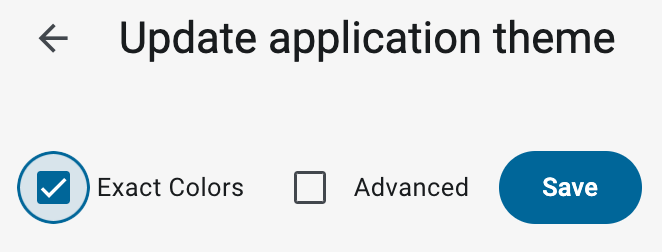
Now, you can go and test your theme. You can leave the Admin Page and try creating a DMP. If you are happy with your theme, you can return to the Admin Page and click Save.
Advanced Flow
The Material Design System allows for three input colors: primary, secondary and tertiary. The TU Wien theme was actually generated using both a Primary Color #006699 and a Tertiary Color #373737. To input this additional color, you can enable the Tertiary Color Picker.
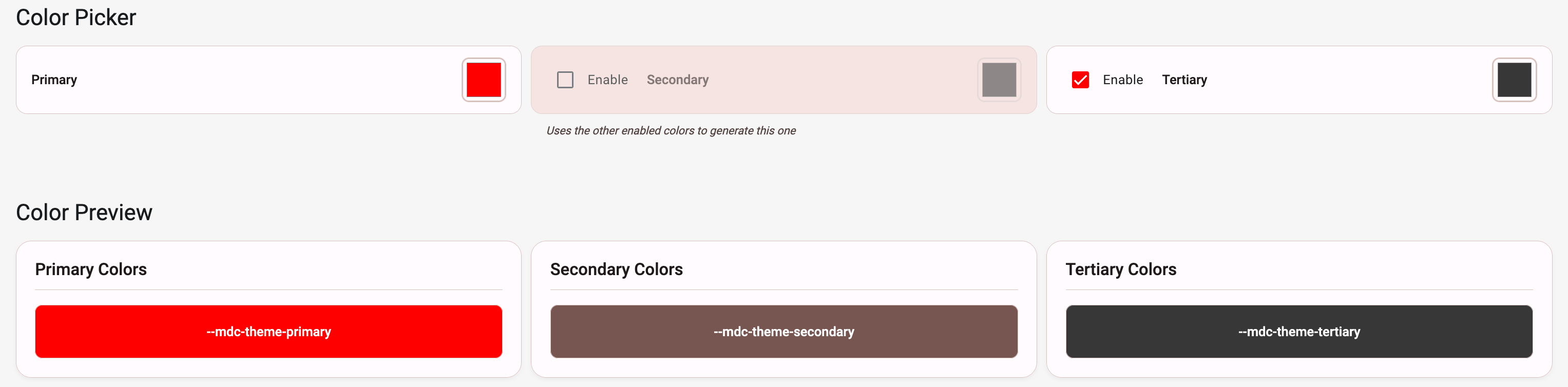
For even more color pickers (which have a subtle effect on the application), you can enable the Advanced checkbox:
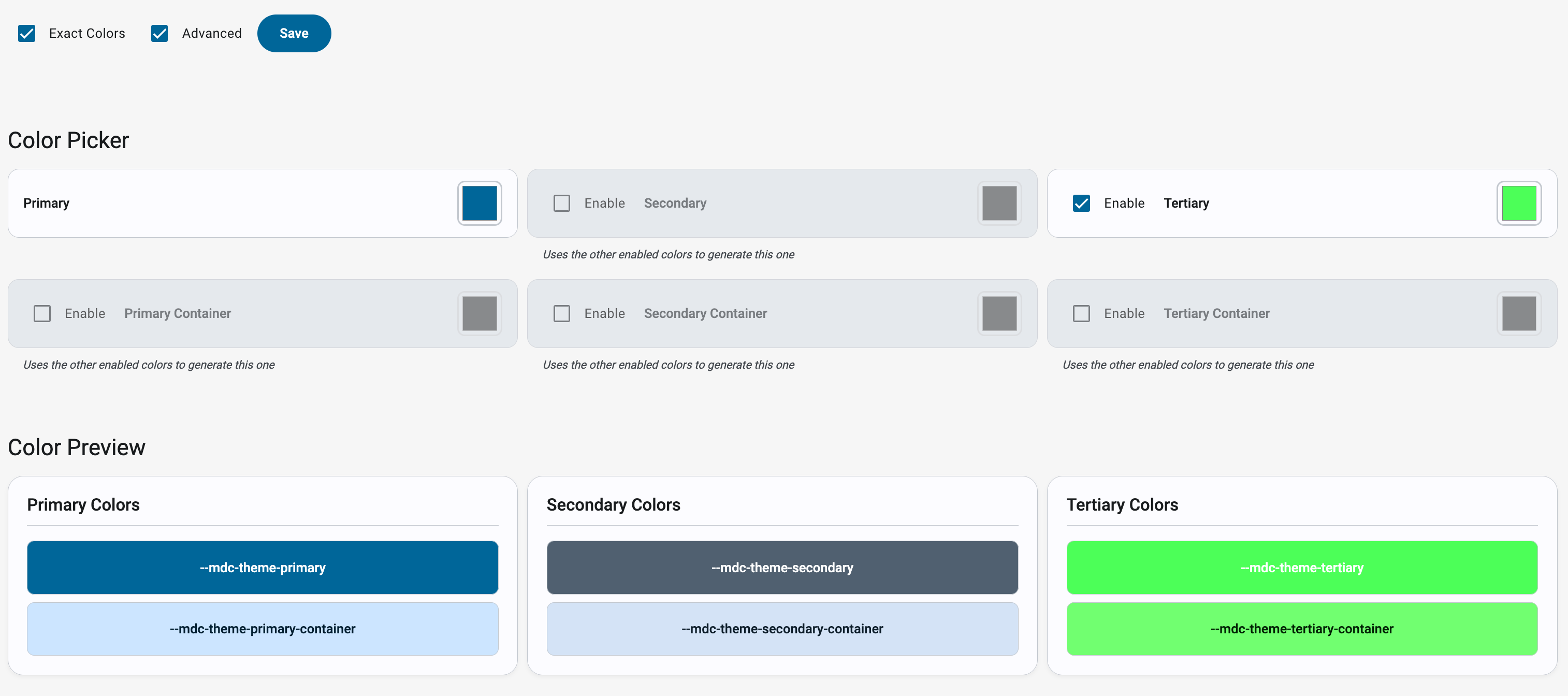
Again, make sure to save your theme if you are happy with it.